Devotional Nonduality Study Group
Hosting guide
Join the meeting ↗
If asked for a password: 944742
Hosting on Zoom
If no one is host, claim the role using the host key. Ask Bram or another host privately for the key.
It's easiest to host on PC / Mac, but it can be done on your phone too.
PC / Mac
Become host
Join the meeting → Participants → Claim Host → enter the key → Claim Host.
Share your screen
- Open the image, video or music you want to share.
- In Zoom, click Share and select the window or screen.
- For video or music: tick Share sound. Otherwise the group may see the video but will not hear its sound.
- Click Share. Ask the group to confirm they can hear it.
- Click Stop Share when finished.
On Mac, allow Zoom screen-recording access if prompted.
iPhone / iPad
Become host
Join the meeting → More (…) → Enter Host Key to Claim Host → enter the key → Claim.
Share your screen
- In Zoom: Share Content → Screen → Start Broadcast.
- After the countdown, open the resource in your browser.
- Return to Zoom and tap Stop Share to finish.
Android
Become host
Join the meeting → More (…) → Enter Host Key to Claim Host → enter the key → Claim.
Share your screen
- In Zoom: Share → Screen.
- Approve Android’s recording/casting prompt with Start now.
- If asked to allow Zoom to display over other apps, open the help below.
- Open the resource in your browser.
- Tap Zoom’s Stop Share to finish.
Screen sharing not working on Android?
If screen sharing stops immediately, or Zoom asks for permission to appear over other apps, check the setting below. It allows Zoom to keep its controls visible while you share.
- Open your phone’s Settings → Apps → Zoom → Display over other apps. If Zoom already opened this settings screen, continue there.
- Turn on Allow display over other apps. On Samsung, look under Apps → Special access → Appear on top and enable it for Zoom.
- Return to the Zoom meeting. Tap Share → Screen and approve the recording/casting prompt with Start now.
Setting names vary by phone. If sharing still does not work, ask Bram or another host for help.
Silence notifications before sharing.
Meeting
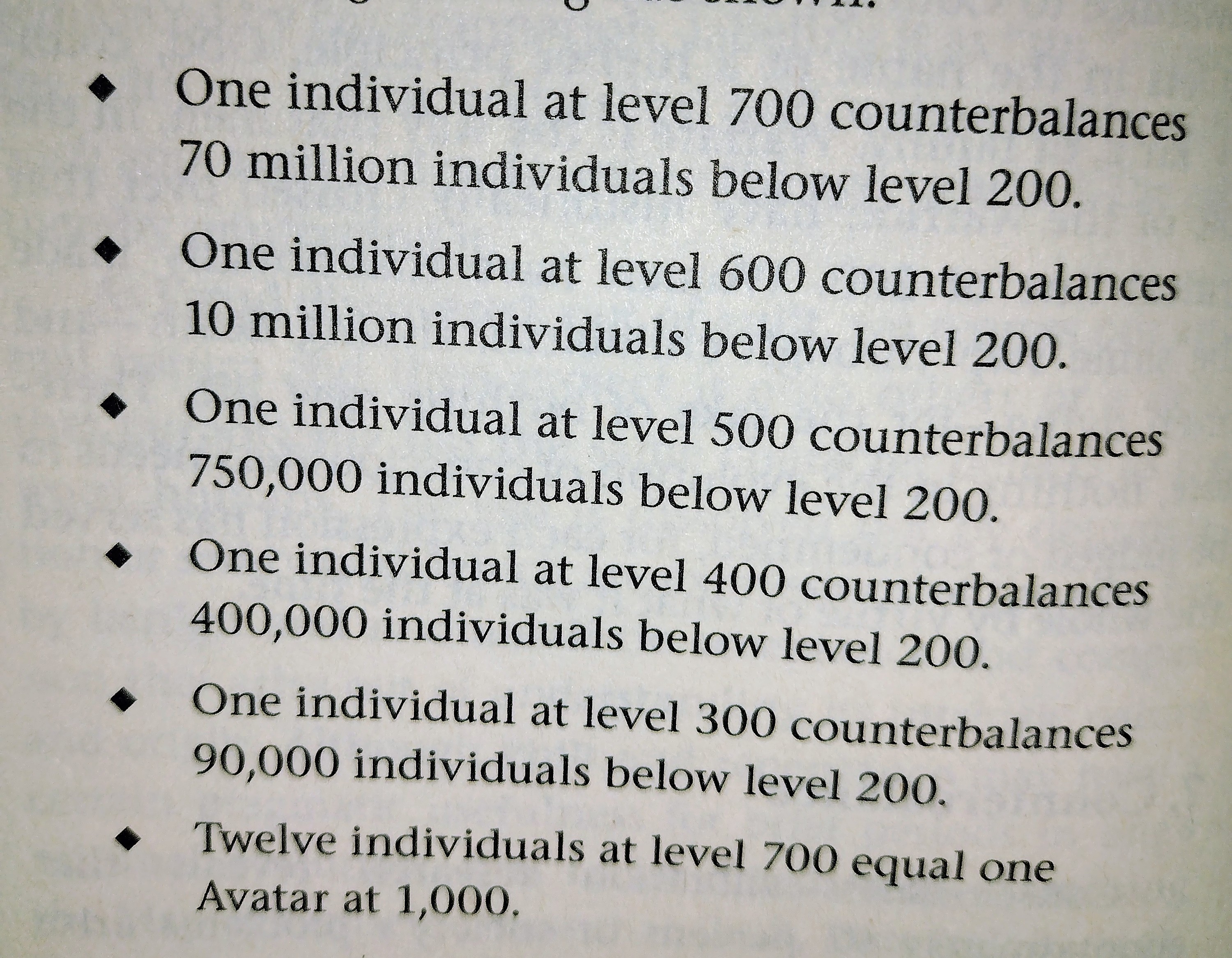
Prepare. Join a few minutes early. Check your sound and have the music and reading ready.
- Music meditation (15–18 min). Play 500+ music that resonates with you with microphones muted.
- Welcome. Give newcomers a warm welcome and go over the guidelines.
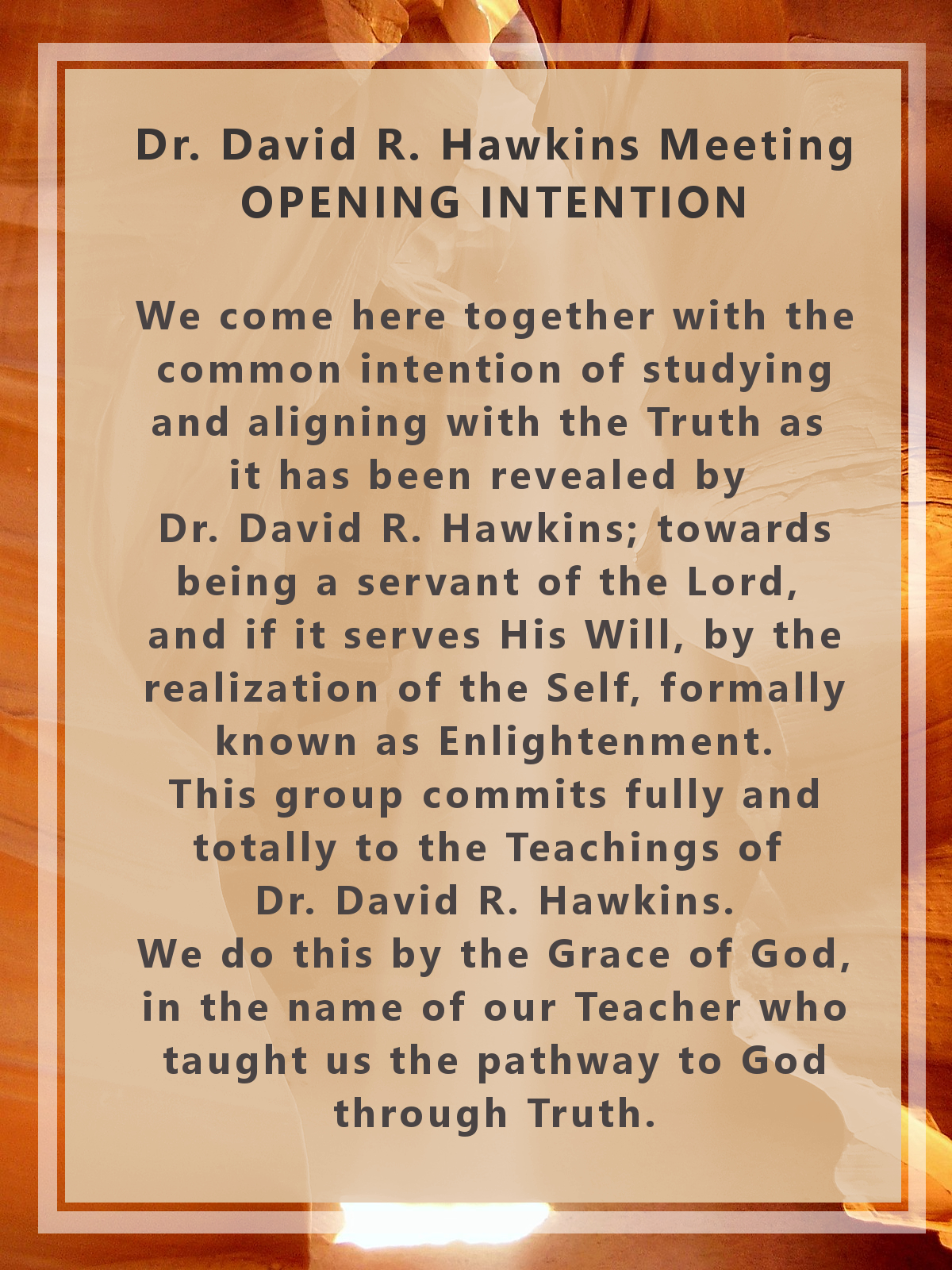
- Opening intention. Share the intention on screen.
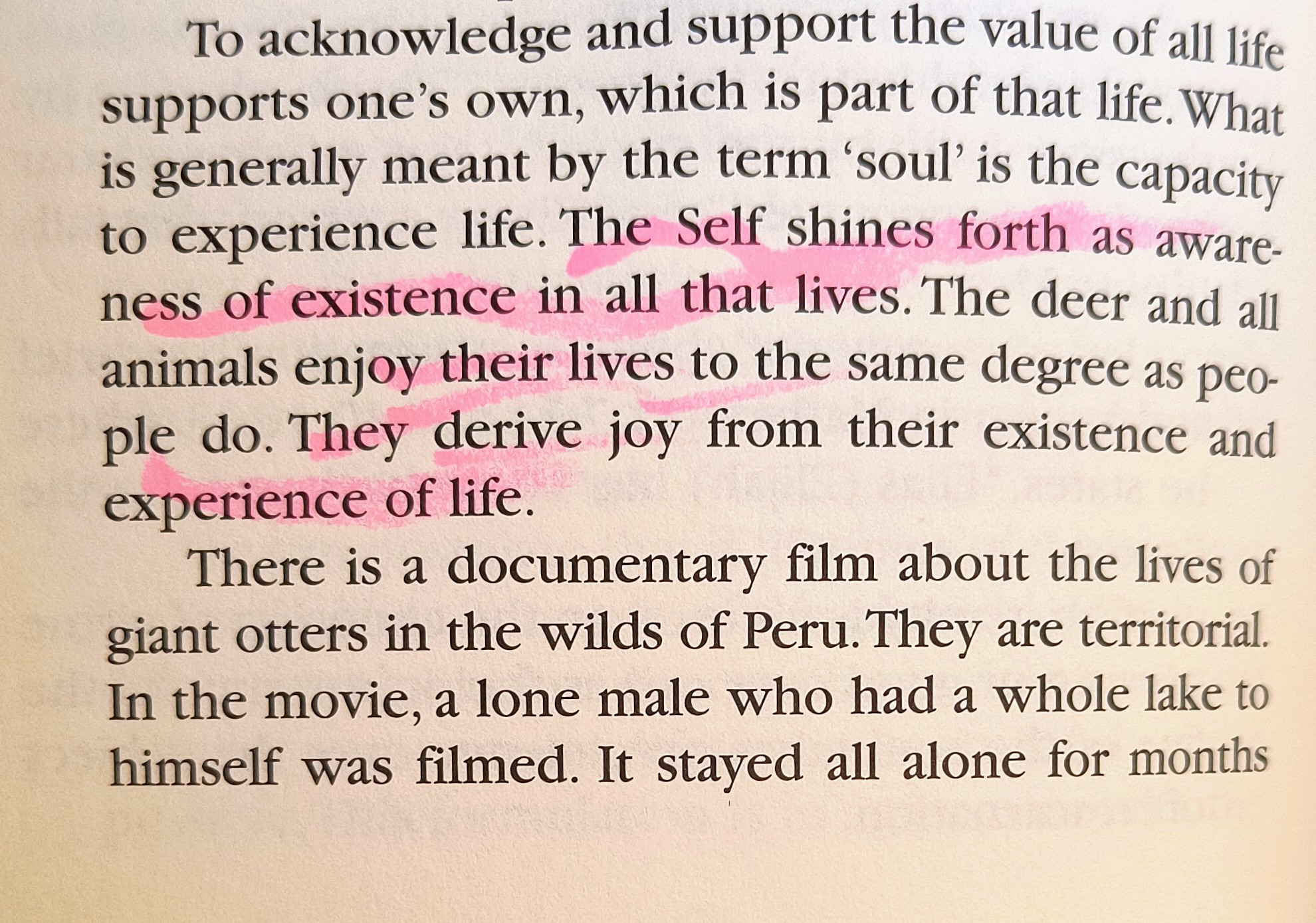
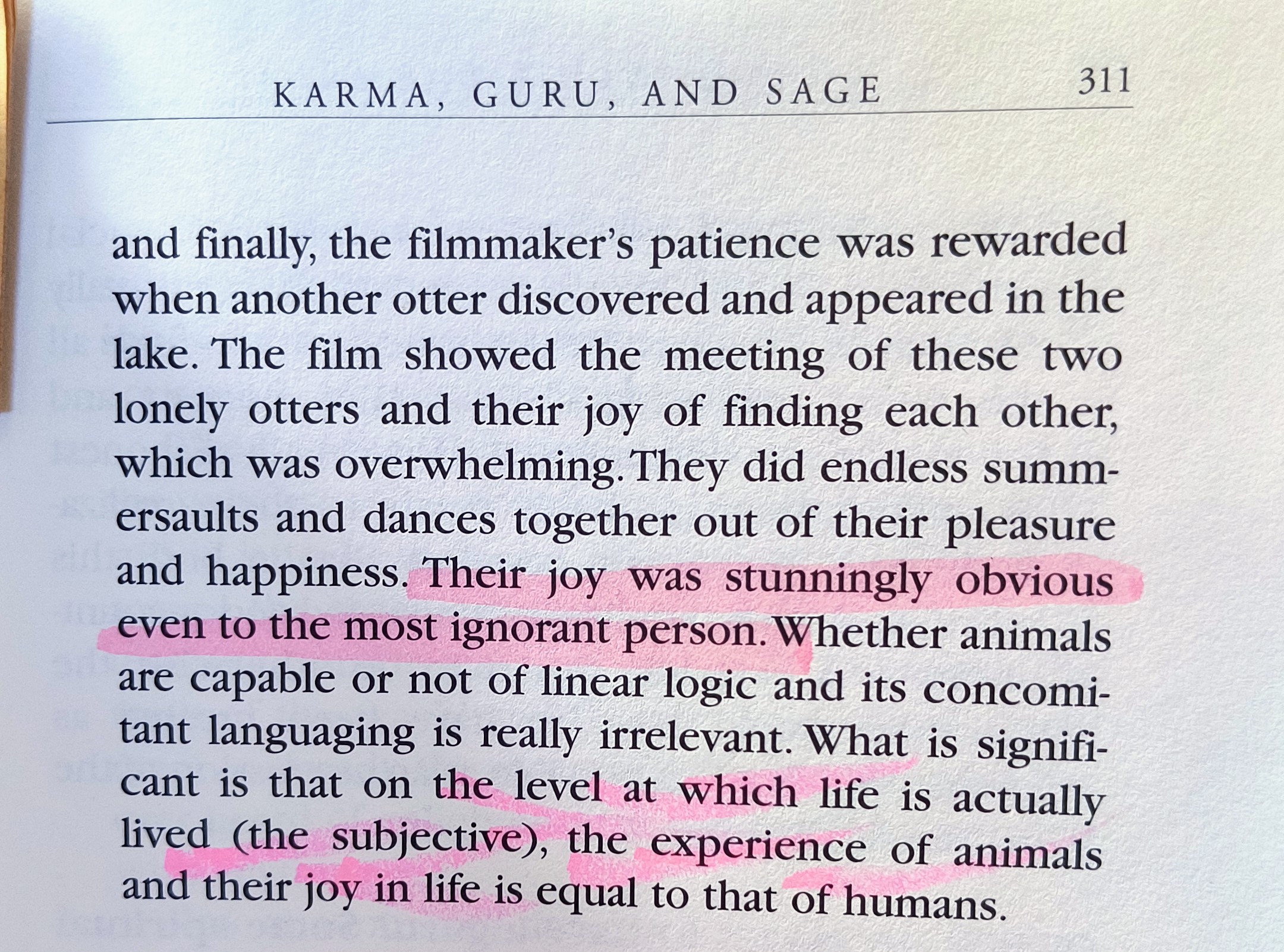
- Read together. Share the book on screen and read together. Post the title or reference in chat; repost for late arrivals if needed.
- Sharing. Give participants an opportunity to share.
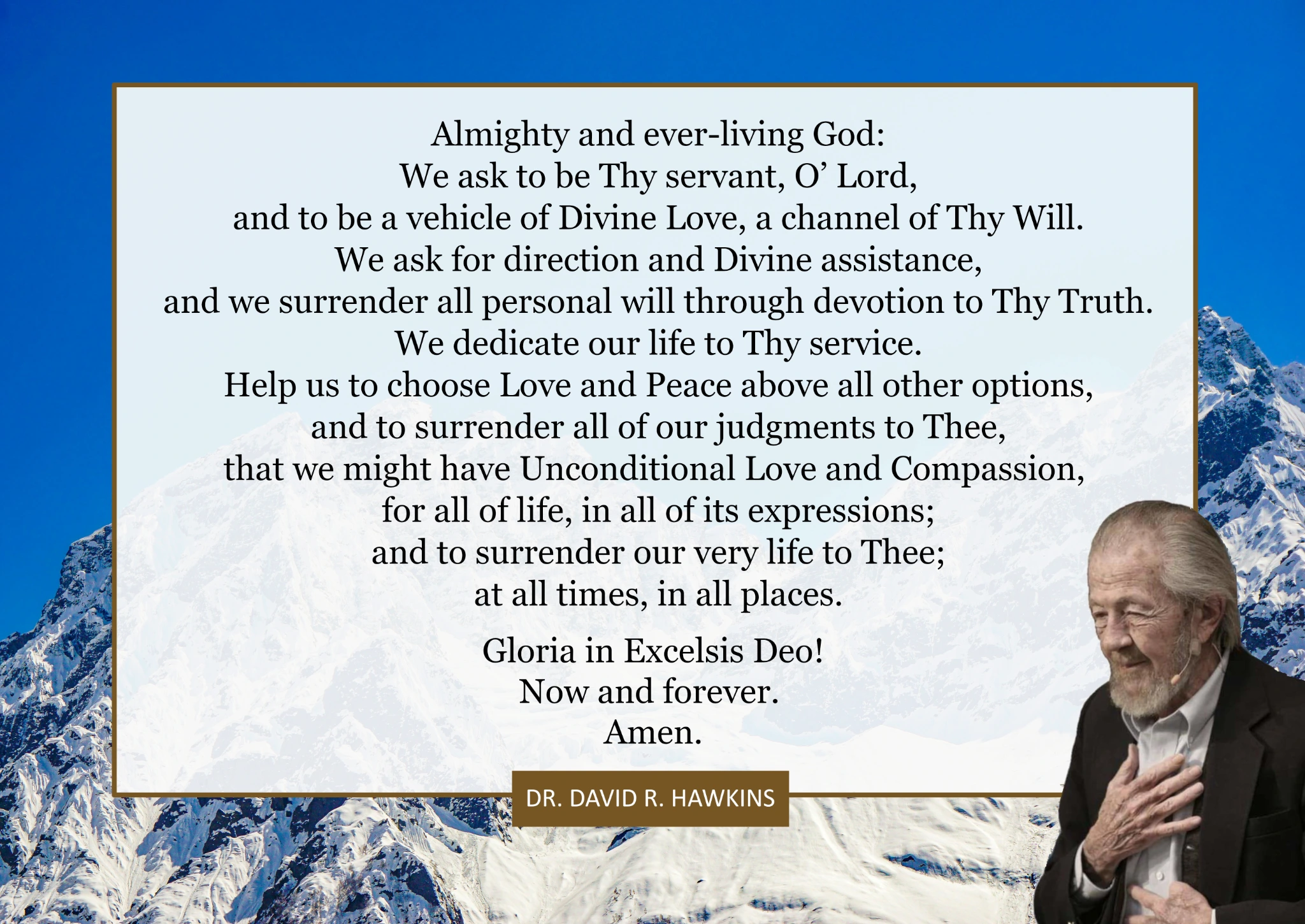
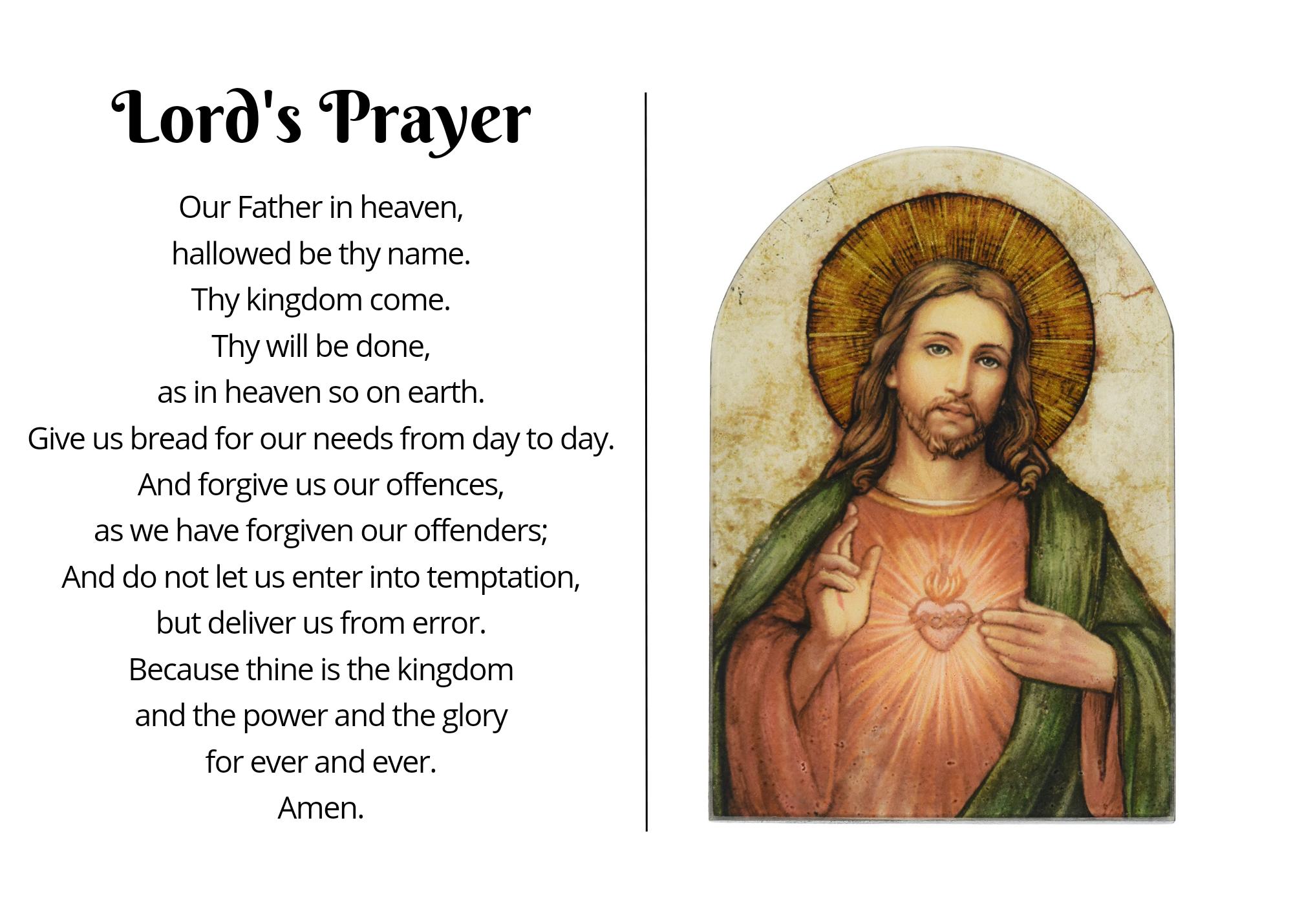
Closing prayer — about 1 hr 30 min after the meeting starts. Share the prayer on screen to close the meeting.
Host tips
- Choose the reading or lecture beforehand. Leave room for quiet; there is no need to fill every pause.
- Aim for roughly two-thirds reading and one-third sharing. Keep your own contributions brief.
- Mute microphones when needed, and give everyone an opportunity to share.
- For music or video on a computer, enable Zoom’s Share sound. Check that the group can hear it before muting your microphone.
- Use subtitles in a language participants understand when available.
- If hosting feels burdensome, ask another host to take a turn.
Guidelines
- We honor our Teacher!
- We don’t dishonor our Teacher.
- We are NOT teachers.
- We are students.
- We are not here to fix or educate anyone.
- We do not pontificate on higher levels of consciousness.
- This is a non positionality group.
- Stay muted unless sharing.
- No cross talking.
- When you share, address the moderator (which today is this student) and the group.
- When you share, please keep it to 3 minutes or less and avoid multiple shares to give others the opportunity.
- when reading and in general, do not editorialize (e. g. "This is important, this is not important, this is what Doc meant...")
Resources
Download all (.zip) ↓Open an image to show it in Zoom.


Doc Remote (Hoge heer)
https://docremote.hogeheer499.nl/
Password: 4153 → Unlock.
Doc Remote controls the group’s shared playback. Coordinate with the current host before changing anything.
On your phone · 50-second guide
Choose & play · visual guide
If Hoge heer is not in the meeting yet, click Join Zoom. It joins in about 10 seconds. If already present, skip this step.
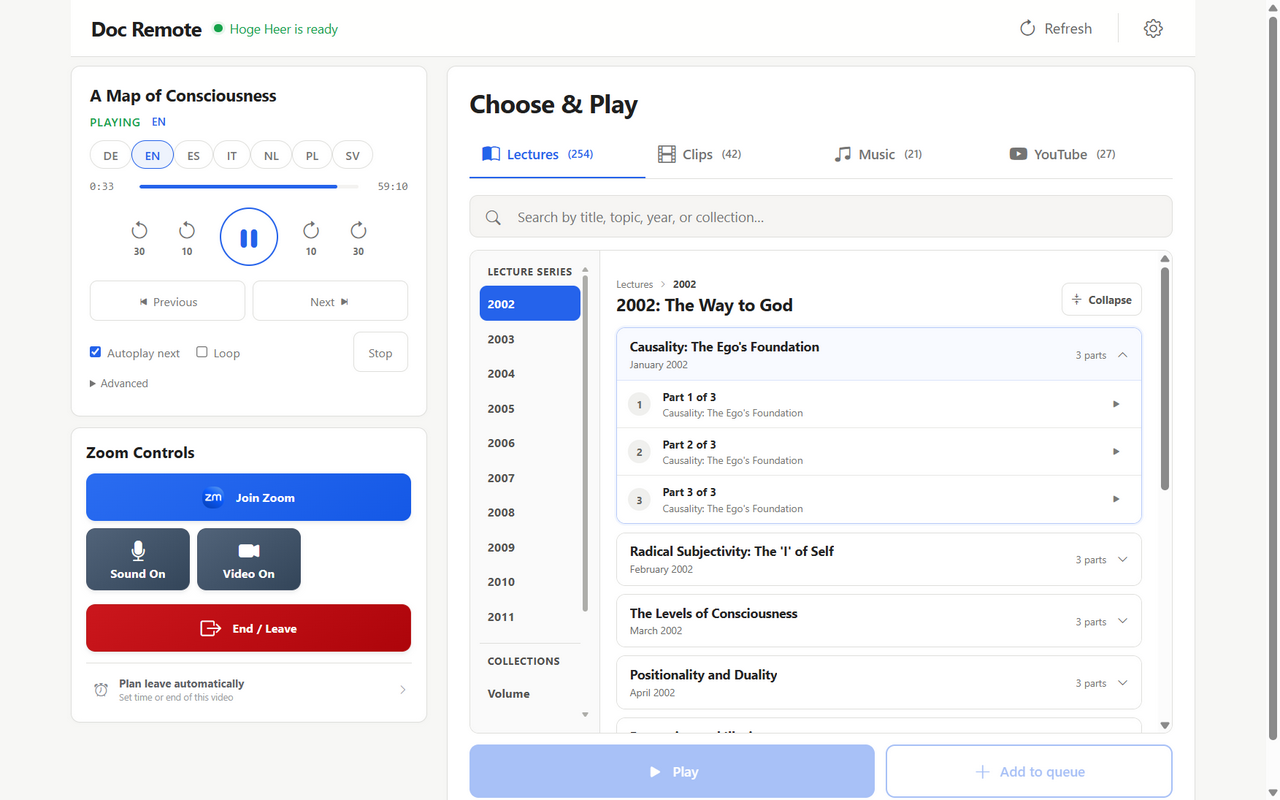
Choose a category, then search by title or topic.
Expand a lecture and select the part you want.
After selecting a part, use Play. Add to queue lines it up for later.
Screenshots show the desktop layout. Tap an image to enlarge it. Play becomes available after selecting material.
Playback controls
- The player shows the current title, playback status and progress.
- Play/Pause pauses or resumes; the 10 and 30 arrows skip seconds backward or forward.
- Autoplay next continues automatically; Loop repeats.
These affect the group’s playback. Avoid player shortcuts while browsing: Space pauses/resumes, and arrow keys skip.
Zoom controls
Join Zoom is for connecting Doc Remote to Zoom. To join personally, use the meeting link at the top of this guide.
Coordinate with the host before changing Sound or Video. End / Leave leaves the meeting or ends it if Doc Remote is host.